The Kindle has become an essential device for readers worldwide. Whether you’re deep into an eBook from Kindle Unlimited or browsing your library, it can be frustrating when your device suddenly freezes or stops responding. One of the easiest and most effective solutions to common Kindle problems is to restart it. If you’re wondering How To Restart Kindle, you’re not alone—many users face this issue from time to time.
Content
Why You May Need To Restart Your Kindle
Restarting your Kindle can resolve several common problems, such as:
Frozen screens
Books not downloading
Slow performance
Connectivity issues
If your Kindle Frozen Reset Not Working, restarting is often the first step in troubleshooting. But how exactly do you do that?
How To Restart Kindle: Step-By-Step
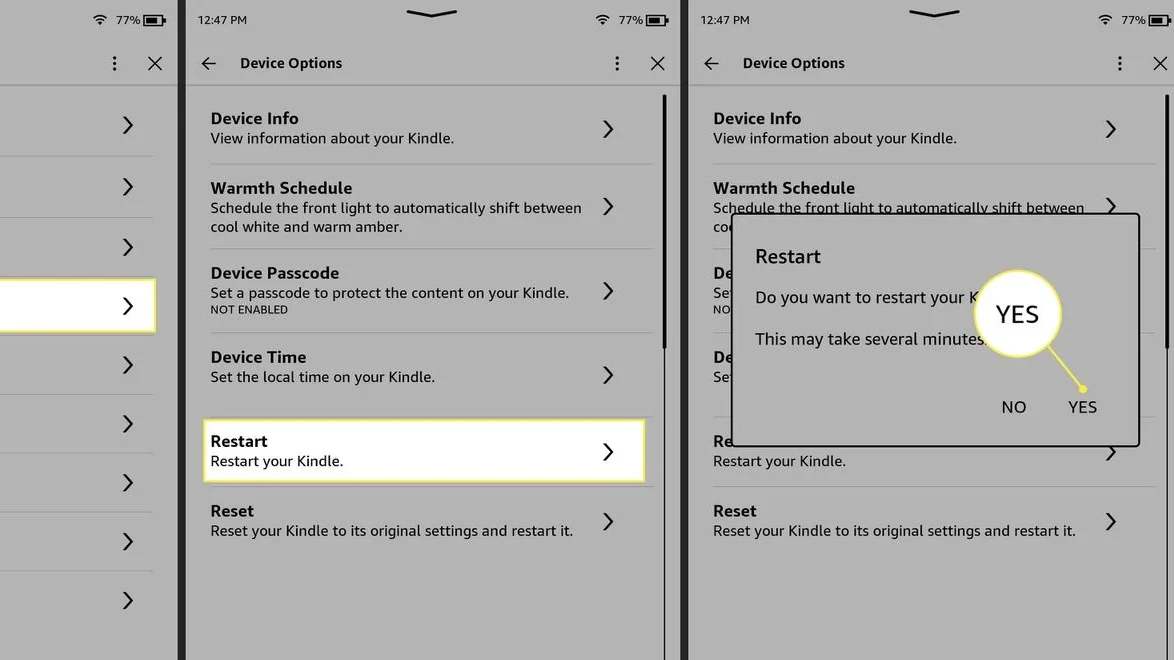
There are different ways to restart a Kindle, depending on the model and the severity of the issue. Here’s a general method that works for most models:
Press and hold the power button for about 9 to 15 seconds.
When the screen goes blank or you see the power dialog box, release the button.
Tap “Restart” if prompted, or wait for the Kindle to reboot automatically.
In most cases, this method works perfectly. But if you’re specifically asking How To Restart KindlePaperwhite, the process is quite similar.
How To Restart Kindle Paperwhite
The Kindle Paperwhite has a slightly different interface, but restarting it is still simple:
Hold down the power button for around 10 seconds.
A menu will appear on the screen.
Tap on “Restart” to reboot the device.
If the screen is unresponsive, keep holding the power button until the device restarts on its own. This method is especially helpful if your Kindle Frozen Reset Not Working scenario happens frequently.
What To Do If Restarting Doesn’t Work
If your Kindle is unresponsive and restarting doesn’t help, you may need to perform a factory reset. This is a more advanced solution and will erase all data from the device. Only use it if you’re sure nothing else is working.
Here’s How To Factory Reset Kindle When Locked:
Slide and hold the power switch for 40 seconds to turn it off.
When the device is off, hold the Power button + Volume down button (on supported models) simultaneously until the recovery screen appears.
Select “Factory Reset” using the volume buttons and confirm.
This will reset your Kindle to its original settings. Make sure your content is backed up before proceeding.
How To Update Kindle After Restarting
After restarting your Kindle or doing a factory reset, it’s a good idea to check for any available software updates. This can fix bugs and improve performance.
To check How To Update Kindle:
Go to the “Settings” menu.
Tap on “Device Options.”
Select “Advanced Options” and tap “Update Your Kindle.”
If this option is grayed out, your Kindle is already up-to-date.
Using Kindle Unlimited After Restart
Restarting your Kindle will not affect your subscription or access to Kindle Unlimited. Once your device reboots, all downloaded books and subscription services will still be available unless you’ve done a factory reset. In that case, you’ll need to re-download your Kindle Unlimited titles.
Looking to showcase your brand to a community of dedicated readers and book enthusiasts? Advertise With Us and reach an engaged audience that truly values great stories.
Final Thoughts
Knowing How To Restart Kindle is essential for any user. Whether you’re dealing with a sluggish device, software glitches, or an unresponsive screen, a simple restart often does the trick. From understanding How To Restart Kindle Paperwhite to learning How To Factory Reset Kindle When Locked, these solutions can save you time and frustration.
If you find that your Kindle Frozen Reset Not Working, don’t panic—try a hard restart or consider updating your device. And remember, keeping your Kindle updated by learning How To Update Kindle can prevent many of these problems in the future. If you’re curious about the benefits and drawbacks of Amazon’s reading subscription, check out our in-depth guide on Is Kindle Unlimited Worth It.
Mark, our sci-fi enthusiast, explores galaxies far, far away. Dive into his futuristic universe and embark on thrilling interstellar adventures through his book reviews.